



I got bored. You too? 😴
Hmm… 🤔
How about building an AI Sticker Maker platform? Honestly, it sounds like a fun idea. And hey, maybe we can even make some money by adding Stripe as the payment option. 💰 Why not? Let’s dive in. Or at least give it a try! 🚀
Quick Introduction 🧐
First up, let’s sketch out some pseudocode or draft a plan — unless you’re the type to just start coding on the fly. It might look like this:
- User types a prompt describing the sticker they want.
- Our AI Sticker Maker creates an adorable sticker. Voilà! 🥳
Simple, right? 🍋
Wait, here’s the deal: we’ll use two models — GPT-4o and DALL·E 3, both from OpenAI. They're seriously cool! 🔥
We’ll tap into the AI/ML API, which gives access to 200+ AI models through a single interface. Here’s a quick intro.
Meet AI/ML API 🤖🔗
This platform is a game changer for devs and SaaS builders eager to add smart AI features effortlessly.
- 200+ pre-trained models ready to use for everything from language tasks to image processing. 📚
- Customize models to your specific needs. 🎯
- Easy integration with REST APIs and SDKs. 🛠️
- Serverless setup — focus on code, not servers. ☁️
You can get started for free at aimlapi.com 🆓
Check out the detailed docs here: docs.aimlapi.com 📖
Tech Stack Ingredients 🥘
We’ll use TypeScript, Next.js, React, and Tailwind CSS to build and design this platform.
- TypeScript: a powerful programming language. 📝
- Next.js: enhances React for web apps. 🌐
- React: library for user interfaces. 🖥️
- Tailwind CSS: super flexible styling. 🎨
Learn more:
- TypeScript: typescriptlang.org 🦕
- Next.js: nextjs.org ⏭️
- React: react.dev ⚛️
- Tailwind CSS: tailwindcss.com 🌬️
Let’s Get Started
Let’s get our hands dirty! First, create a folder. Open your terminal and enter this:
mkdir aiml-tutorial
cd aiml-tutorial
Now, let’s create a new Next.js app:
npx create-next-app@latestIt'll ask a few questions — name your project (like aistickermaker), then just press enter for the rest.
✔ Would you like to use TypeScript? … No / Yes
✔ Would you like to use ESLint? … No / Yes
✔ Would you like to use Tailwind CSS? … No / Yes
✔ Would you like your code inside a `src/` directory? … No / Yes
✔ Would you like to use App Router? (recommended) … No / Yes
✔ Would you like to use Turbopack for `next dev`? … No / Yes
✔ Would you like to customize the import alias (`@/*` by default)? … No / Yes
Tip: Choose yes or no as you please. No judgement! 😜
Open it in VSCode:
code .Now, Visual Studio Code should launch directly with this app. Time to start coding! 💻
API Setup🛠️
Create two API endpoints: enhancePrompt and generateSticker.
The enhancePrompt Endpoint 🧙♂️
Now, let’s start with the enhancePrompt endpoint. Open route.ts inside the enhancePrompt folder and enter the following code:
import { NextResponse } from 'next/server';
const systemPrompt = `
You are tasked with enhancing user prompts to generate clear, detailed, and creative descriptions for a sticker creation AI. The final prompt should be imaginative, visually rich, and aligned with the goal of producing a cute, stylized, and highly personalized sticker based on the user's input.
Instructions:
Visual Clarity: The enhanced prompt must provide clear visual details that can be directly interpreted by the image generation model. Break down and elaborate on specific elements of the scene, object, or character based on the user input.
Example: If the user says "A girl with pink hair," elaborate by adding features like "short wavy pink hair with soft, pastel hues."
Style & Theme:
Emphasize that the final output should reflect a cute, playful, and approachable style.
Add terms like "adorable," "cartoonish," "sticker-friendly," or "chibi-like" to guide the output to a lighter, cuter aesthetic.
Include styling prompts like “minimalistic lines,” “soft shading,” and “vibrant yet soothing colors.”
Personalization:
If a reference or context is given, enhance it to make the sticker feel personalized.
Add context-appropriate descriptors like “wearing a cozy blue hoodie,” “soft pink blush on cheeks,” or “a playful expression.”
Expression & Pose:
Where applicable, refine prompts with suggestions about facial expressions or body language. For example, “Smiling softly with big sparkling eyes” or “A cute wink and a slight tilt of the head.”
Background & Accessories:
Optionally suggest simple, complementary backgrounds or accessories, depending on user input. For instance, "A light pastel background with small, floating hearts" or "Holding a tiny, sparkling star."
Colors:
Emphasize the color scheme based on the user's description, making sure it's consistent with a cute, playful style.
Use descriptors like “soft pastels,” “bright and cheerful,” or “warm and friendly hues” to set the mood.
Avoid Overcomplication:
Keep the descriptions short enough to be concise and not overly complex, as the output should retain a sticker-friendly quality.
Avoid unnecessary details that could clutter the design.
Tone and Language:
The tone should be light, imaginative, and fun, matching the playful nature of stickers.
Example:
User Input:
"A girl with pink hair wearing a hoodie."
Enhanced Prompt:
"An adorable girl with short, wavy pink hair in soft pastel hues, wearing a cozy light blue hoodie. She has a sweet smile with big, sparkling eyes, and a playful expression. The sticker style is cartoonish with minimalistic lines and soft shading. The background is a simple light pastel color with small floating hearts, creating a cute and inviting look."
`;
export async function POST(request: Request) {
   try {
       const { userPrompt } = await request.json();
       console.log("/api/enhancePrompt/route.ts userPrompt: ", userPrompt);
       // Make the API call to the external service
         const response = await fetch('https://api.aimlapi.com/chat/completions', {
           method: 'POST',
           headers: {
             'Content-Type': 'application/json',
             'Authorization': `Bearer ${process.env.NEXT_PUBLIC_AIML_API_KEY}`
           },
           body: JSON.stringify({
             model: 'gpt-4o-mini',
             messages: [
               {
                 role: 'system',
                 content: systemPrompt
               },
               {
                 role: 'user',
                 content: userPrompt
               }
             ]
           })
         });
       console.log("response: ", response);
       if (!response.ok) {
           // If the API response isn't successful, return an error response
           return NextResponse.json({ error: "Failed to fetch completion data" }, { status: response.status });
       }
       const data = await response.json();
       console.log("data: ", data);
       const assistantResponse = data.choices[0]?.message?.content || "No response available";
       // Return the assistant's message content
       return NextResponse.json({ message: assistantResponse });
   } catch (error) {
       console.error("Error fetching the data:", error);
       return NextResponse.json({ error: "An error occurred while processing your request." }, { status: 500 });
   }
}
Here’s separated prompt:
You are tasked with enhancing user prompts to generate clear, detailed,
and creative descriptions for a sticker creation AI.
The final prompt should be imaginative, visually rich,
and aligned with the goal of producing a cute, stylized,
and highly personalized sticker based on the user's input.

Instructions:
 - Visual Clarity: The enhanced prompt must provide clear visual details
that can be directly interpreted by the image generation model.
Break down and elaborate on specific elements of the scene, object,
or character based on the user input.
 - Example: If the user says "A girl with pink hair," elaborate by adding
features like "short wavy pink hair with soft, pastel hues."
 - Style & Theme:
Emphasize that the final output should reflect a cute, playful, and approachable style.
Add terms like "adorable," "cartoonish," "sticker-friendly,"
or "chibi-like" to guide the output to a lighter, cuter aesthetic.
Include styling prompts like “minimalistic lines,”
“soft shading,” and “vibrant yet soothing colors.”
 - Personalization:
If a reference or context is given, enhance it to make the sticker feel personalized.
Add context-appropriate descriptors like “wearing a cozy blue hoodie,”
“soft pink blush on cheeks,” or “a playful expression.”
 - Expression & Pose:
Where applicable, refine prompts with suggestions about facial expressions or body language.
For example, “Smiling softly with big sparkling eyes”
or “A cute wink and a slight tilt of the head.”
- Background & Accessories:
Optionally suggest simple, complementary backgrounds or accessories, depending on user input.
For instance, "A light pastel background with small, floating hearts"
or "Holding a tiny, sparkling star."
 - Colors:
Emphasize the color scheme based on the user's description,
making sure it's consistent with a cute, playful style.
Use descriptors like “soft pastels,” “bright and cheerful,”
or “warm and friendly hues” to set the mood.
 - Avoid Overcomplication:
Keep the descriptions short enough to be concise and not overly complex,
as the output should retain a sticker-friendly quality.
Avoid unnecessary details that could clutter the design.
 - Tone and Language:
The tone should be light, imaginative, and fun, matching the playful nature of stickers.
 - Example:
 - User Input:
"A girl with pink hair wearing a hoodie."
Enhanced Prompt:
"An adorable girl with short, wavy pink hair in soft pastel hues,
wearing a cozy light blue hoodie. She has a sweet smile with big,
sparkling eyes, and a playful expression.
The sticker style is cartoonish with minimalistic lines and soft shading.
The background is a simple light pastel color with small floating hearts,
creating a cute and inviting look."
What's Happening Here? 🤔
- Importing NextResponse: To handle our HTTP responses smoothly.
- Defining the POST function: This is where the magic happens when someone hits this endpoint.
- Fetching the userPrompt: We're grabbing the prompt the user provided.
- Calling AI/ML API’s API: We’re making a request to enhance the user’s prompt using GPT-4o.
- Handling Responses: We check if the response is okay, parse the data, and extract the assistant’s response.
- Error Handling: Because nobody likes unhandled errors ruining the party.
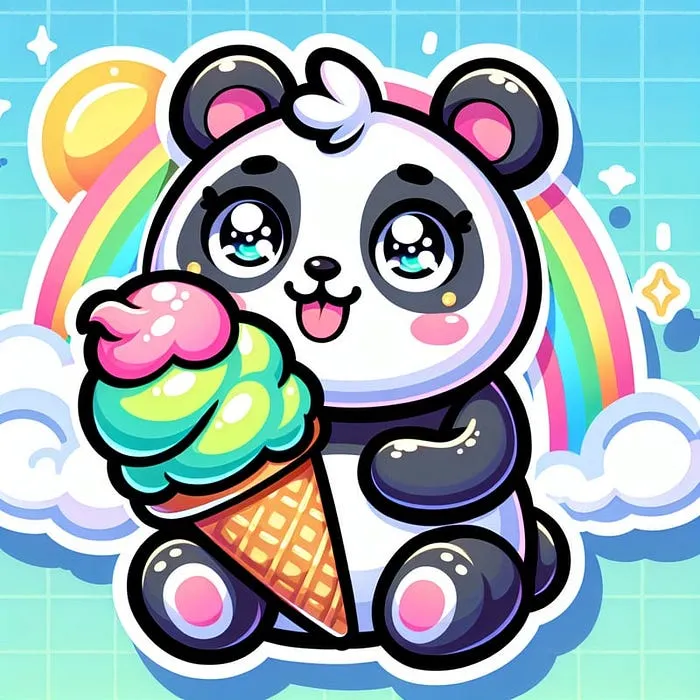
Here's an actual example of how the AI enhances the user's prompt. 🐼🍦🌈
You just entered a prompt:
A cute panda eating ice cream under a rainbowThe AI will enhance it to make it more detailed and visually rich. As a result, you should ger a response like:
An adorable, chibi-like panda with big, sparkling eyes and a joyful expression,
savoring a colorful scoop of ice cream. The panda is fluffy and round,
with classic black-and-white markings, sitting contentedly.
The ice cream cone features vibrant, swirling flavors in pastel pink, mint green,
and sunny yellow. Above, a playful, cartoonish rainbow arcs across a soft blue sky,
adding a cheerful splash of color. The design is sticker-friendly
with minimalistic lines and soft shading, ensuring a cute and
delightful aesthetic perfect for capturing the joyful scene.
Alright, let’s dive back into the code cauldron and continue cooking up our AI Sticker Maker! 🍲
The generateSticker Endpoint 🖼️
So, we’ve got our enhancePrompt endpoint simmering nicely. Time to spice things up with the generateSticker endpoint. Head over to the api/generateSticker folder and open up route.ts. Replace whatever's in there (probably nothing) with this fresh code:
// api/generateSticker/route.ts
import { NextResponse } from 'next/server';
export async function POST(request: Request) {
   try {
       const { userPrompt } = await request.json();
       console.log("/api/generateSticker/route.ts userPrompt: ", userPrompt);
       // Make the API call to the external service
       const response = await fetch('https://api.aimlapi.com/images/generations', {
         method: 'POST',
         headers: {
           'Content-Type': 'application/json',
           'Authorization': `Bearer ${process.env.NEXT_PUBLIC_AIML_API_KEY}`
         },
         body: JSON.stringify({
           provider: 'openai',
           prompt: userPrompt,
           model: 'dall-e-3',
           n: 1,
           quality: 'hd',
           response_format: 'url',
           size: '1024x1024',
           style: 'vivid'
         })
       });
       console.log("response: ", response);
       if (!response.ok) {
           // If the API response isn't successful, return an error response
           return NextResponse.json({ error: "Failed to fetch completion data" }, { status: response.status });
       }
       const data = await response.json();
       console.log("data: ", data);
       const assistantResponse = data.data[0]?.url || "No response available";
       console.log("assistantResponse: ", assistantResponse);
       // Return the assistant's message content
       return NextResponse.json({ message: assistantResponse });
   } catch (error) {
       console.error("Error fetching the data:", error);
       return NextResponse.json({ error: "An error occurred while processing your request." }, { status: 500 });
   }
}
What's Happening Here? 🤔
- Importing NextResponse: For smooth handling of our HTTP responses.
- Defining the POST function: This function triggers the magic whenever the endpoint is accessed.
- Fetching the userPrompt: We collect the user's input prompt.
- Calling AI/ML API’s API: We send a request to generate an image based on the prompt using DALL·E 3.
- Handling Responses: We verify the response, parse the data, and extract the image URL.
- Error Handling: Because nobody enjoys unexpected errors ruining the fun.
Let's put the panda prompt to the test! 🚀
Here's our cutesy panda sticker! 🐼🍦🌈
Other examples 😍
Prompt:
A girl with short white+grey hair wearing a oversize shirt
Prompt:
A girl with short black+pink hair wearing a oversize pink shirt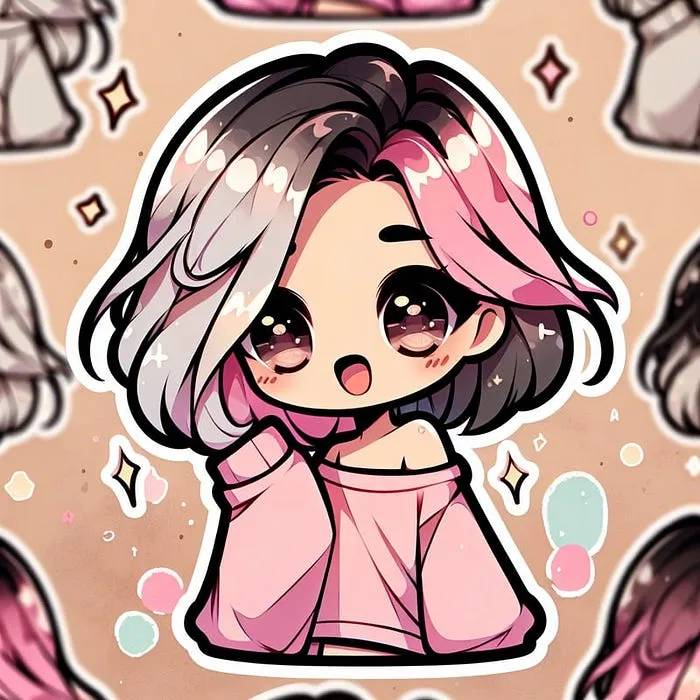
Wow, right? 🤩
We need a frontend, GUYS! 😅
Building the Frontend 🎨
We’ll design a simple user interface where folks enter their prompts and see their stickers. Features include:
- Input field
- Generate button
- Sticker display modal with download option
- Notifications to update users about progress or issues
We use FontAwesome icons for some extra sparkle — make sure you install it!
The page.tsx File 📄
Navigate to app/page.tsx and update it with the following code:
// app/page.tsx
'use client';
import Image from "next/image";
import { useState } from 'react';
import { faArrowUp, faDownload, faTimes } from '@fortawesome/free-solid-svg-icons';
import { FontAwesomeIcon } from '@fortawesome/react-fontawesome';
import Notification from './utils/notify';
import { Analytics } from "@vercel/analytics/react"
export default function Home() {
 const [notification, setNotification] = useState<{ message: string; type: 'error' | 'success' | 'info' } | null>(null);  // notification message
 const [loading, setLoading] = useState(false);
 const [prompt, setPrompt] = useState('');
 const [stickerUrl, setStickerUrl] = useState("");
 const loader = () => (
   <svg xmlns="http://www.w3.org/2000/svg" width="1em" height="1em" viewBox="0 0 24 24">
   <circle cx={4} cy={12} r={3} fill="currentColor">
       <animate id="svgSpinners3DotsScale0" attributeName="r" begin="0;svgSpinners3DotsScale1.end-0.25s" dur="0.75s" values="3;.2;3" />
   </circle>
   <circle cx={12} cy={12} r={3} fill="currentColor">
       <animate attributeName="r" begin="svgSpinners3DotsScale0.end-0.6s" dur="0.75s" values="3;.2;3" />
   </circle>
   <circle cx={20} cy={12} r={3} fill="currentColor">
       <animate id="svgSpinners3DotsScale1" attributeName="r" begin="svgSpinners3DotsScale0.end-0.45s" dur="0.75s" values="3;.2;3" />
   </circle>
   </svg>
 );
 const enhanceUserPrompt = async (prompt: string) => {
   setNotification({ message: 'Enhancing user prompt...', type: 'info' });
   // Make the API call to the /api/enhancePrompt route and return the enhanced prompt
   const response = await fetch('/api/enhancePrompt', {
     method: 'POST',
     headers: {
       'Content-Type': 'application/json',
     },
     body: JSON.stringify({ userPrompt: prompt }),
   });
   if (!response.ok) {
     throw new Error('Failed to fetch completion data');
   }
   const data = await response.json();
   return data.message;
 };
 const generateCuteSticker = async (prompt: string) => {
   setNotification({ message: 'Generating cute sticker...', type: 'info' });
   // Make the API call to the /api/generateSticker route and return the generated sticker URL
   const response = await fetch('/api/generateSticker', {
     method: 'POST',
     headers: {
       'Content-Type': 'application/json',
     },
     body: JSON.stringify({ userPrompt: prompt }),
   });
   if (!response.ok) {
     throw new Error('Failed to fetch completion data');
   }
   const data = await response.json();
   return data.message;
 };
   const generateSticker = async () => {
       if (!prompt) return;
       setLoading(true);
       setNotification({ message: 'Processing request...', type: 'info' });
       try {
         // Enhance user prompt
         const enhancedPrompt = await enhanceUserPrompt(prompt);
         if (!enhancedPrompt) {
           setNotification({ message: 'Failed to enhance user prompt.', type: 'error' });
           return;
         }
         // Generate cute sticker
         const sticker = await generateCuteSticker(enhancedPrompt);
         if (!sticker) {
           setNotification({ message: 'Failed to generate cute sticker.', type: 'error' });
           return;
         }
         setStickerUrl(sticker);
         console.log('Sticker URL:', sticker);
         setNotification({ message: 'Cute sticker generated successfully!', type: 'success' });
       } catch (error) {
         console.error('An unexpected error occurred:', error);
         setNotification({ message: 'An unexpected error occurred.', type: 'error' });
       } finally {
         setLoading(false);
       }
   };
   const handleDownload = () => {
     if (!stickerUrl) return;
     const link = document.createElement('a');
     link.href = stickerUrl;
     link.download = 'cute-sticker.png'; // You can set a default filename
     document.body.appendChild(link);
     link.click();
     document.body.removeChild(link);
   };
   const handleClose = () => {
     setStickerUrl("");
     setPrompt("");
   };
   return (
       <div className="flex flex-col items-center justify-center min-h-screen text-white p-4 bg-[#212121e6]">
           <Analytics />
           {notification && (
               <Notification
                   message={notification.message}
                   type={notification.type}
                   onClose={() => setNotification(null)}
               />
           )}
           <div className="mb-6 inline-flex justify-center text-2xl font-semibold leading-9">
               <h1>Let's Generate Cutesy AI Sticker!</h1>
           </div>
           <div className="lg:w-[60%] w-full mx-auto flex items-center p-2 mb-8 shadow-lg gap-4 bg-[#2e2e2e] rounded-full">
               <input
                   type="text"
                   value={prompt}
                   onChange={(e) => setPrompt(e.target.value)}
                   placeholder="A girl with short pink hair wearing a oversize hoodie..."
                   className="placeholder:text-[#aeaeae] bg-transparent focus:outline-none text-white outline-none w-full px-4"
                   disabled={loading}
               />
               <button
                   disabled={prompt === '' || loading}
                   onClick={generateSticker}
                   className={`flex items-center justify-center w-12 h-10 rounded-full shadow ${
                     prompt === '' ? 'cursor-not-allowed bg-[#4e4e4e] text-black' : 'cursor-pointer bg-[#eeeeee] text-black'}`}
                   >
                   {!loading
                       ? <FontAwesomeIcon icon={faArrowUp} />
                       : <span className='flex justify-center items-center text-black text-xl'>{loader()}</span>
                   }
               </button>
           </div>
           {/* Modal */}
           {stickerUrl && (
             <div className="fixed inset-0 bg-black bg-opacity-50 flex items-center justify-center z-50">
               <div className="bg-[#2e2e2e] rounded-md p-4 relative w-11/12 max-w-md">
                 {/* Download Button */}
                 <button
                   onClick={handleDownload}
                   className="absolute top-4 right-4 flex items-center justify-center w-8 h-8 bg-[#4e4e4e] rounded-full hover:bg-[#5e5e5e] transition"
                   title="Download"
                 >
                   <FontAwesomeIcon icon={faDownload} className="text-white" />
                 </button>
                 {/* Close Button */}
                 <button
                   onClick={handleClose}
                   className="absolute top-4 left-4 flex items-center justify-center w-8 h-8 bg-[#4e4e4e] rounded-full hover:bg-[#5e5e5e] transition"
                   title="Close"
                 >
                   <FontAwesomeIcon icon={faTimes} className="text-white" />
                 </button>
                 {/* Sticker Image */}
                 <div className="flex justify-center items-center">
                   <Image
                     src={stickerUrl}
                     alt="Generated Sticker"
                     width={300}
                     height={300}
                     className="rounded-md"
                   />
                 </div>
               </div>
             </div>
           )}
       </div>
   );
}
Breaking It Down 🧩
Loader: A clean loader with three animated horizontal dots.
const loader = () => (
   <svg xmlns="http://www.w3.org/2000/svg" width="1em" height="1em" viewBox="0 0 24 24">
   <circle cx={4} cy={12} r={3} fill="currentColor">
       <animate id="svgSpinners3DotsScale0" attributeName="r" begin="0;svgSpinners3DotsScale1.end-0.25s" dur="0.75s" values="3;.2;3" />
   </circle>
   <circle cx={12} cy={12} r={3} fill="currentColor">
       <animate attributeName="r" begin="svgSpinners3DotsScale0.end-0.6s" dur="0.75s" values="3;.2;3" />
   </circle>
   <circle cx={20} cy={12} r={3} fill="currentColor">
       <animate id="svgSpinners3DotsScale1" attributeName="r" begin="svgSpinners3DotsScale0.end-0.45s" dur="0.75s" values="3;.2;3" />
   </circle>
   </svg>
 );
- State Management: useState handles notifications, loading state, user input, and sticker URL.
Functions:
- enhanceUserPrompt: Calls
/api/enhancePromptto polish the user's prompt. - generateCuteSticker: Hits UI Components: to create the sticker image.
- generateSticker: Coordinates the full process when the button’s clicked.
- handleDownload: Lets the user download their sticker.
- handleClose: Closes the sticker modal.
UI Components:
- Input Field: Users type their sticker ideas here.
- Generate Button: Starts the sticker creation.
- Modal: Shows the sticker with download and close options.
- Notifications: Displays messages to keep users informed.
A Sprinkle of FontAwesome 🌟
We’re using FontAwesome for icons. Make sure to install it:
npm i --save @fortawesome/fontawesome-svg-core
npm i --save @fortawesome/free-solid-svg-icons
npm i --save @fortawesome/free-regular-svg-icons
npm i --save @fortawesome/free-brands-svg-icons
npm i --save @fortawesome/react-fontawesome@latest
You may also check the FontAwesome documentation for more details. Or search for other icons Search icons.
Handling Notifications 🔔
Let's add that notification component we imported!
Creating the Notification Component 📢
Make a new folder called utils in your app directory. Inside, create notify.tsx with this content:utils inside your app directory. Inside utils, create a file called notify.tsx and paste:
// app/utils/notify.tsx
import React, { useEffect } from 'react';
type NotificationProps = {
 message: string;
 type: 'error' | 'success' | 'info';
 onClose: () => void;
};
const Notification: React.FC<NotificationProps> = ({ message, type, onClose }) => {
 useEffect(() => {
   const timer = setTimeout(() => {
     onClose();
   }, 3000); // Auto-close after 3 seconds
   return () => clearTimeout(timer);
 }, [onClose]);
 const bgColor = type === 'error' ? 'bg-red-500' : type === 'success' ? 'bg-green-500' : 'bg-blue-500';
 return (
   <div className={`fixed top-10 left-1/2 transform -translate-x-1/2 ${bgColor} text-white px-4 py-2 rounded-md shadow-lg z-50`}>
     <p>{message}</p>
   </div>
 );
};
export default Notification;
What's This For? 🎈
- Purpose: Shows brief messages to users, like "Generating cute sticker..." or "An error occurred."
- Auto-Close: Disappears automatically after 3 seconds, just like my Monday motivation.
- Styling: Different colors based on notification type.
Configuring Image Domains 🖼️
Because we fetch images from OpenAI servers, Next.js blocks external domains by default. In next.config.ts, add the domain to allow images:
// next.config.ts
import type { NextConfig } from "next";
const nextConfig: NextConfig = {
 /* config options here */
 images: {
   remotePatterns: [
     {
       protocol: 'https',
       hostname: 'oaidalleapiprodscus.blob.core.windows.net',
       port: '',
     },
   ],
 },
};
export default nextConfig;
Why Do This? 🤷♂️
Next.js acts like a protective parent and won’t load images from sources you haven’t permitted. This setting tells it, “It’s cool, these images are safe.” a bit overprotective (like a helicopter parent) and won’t load images from external domains unless you specifically allow it. This setting tells Next.js, “It’s cool, these images are with me.”
Environment Variables 🔑
Before running your app, set environment variables properly.
Setting Up Your AI/ML API Key 🗝️
Create .env.local at the project root and add:
NEXT_PUBLIC_AIML_API_KEY=your_api_key_hereReplace your_api_key_here with the actual API key. If you haven’t got one, sign up at AI/ML API. It's totally FREE to get started!
Need help? Here’s a quick tutorial:
Warning: Keep your key secret! Don’t share it publicly or commit to Git. Treat it like your Netflix password.
Fire It Up! 🚀
Let’s see it in action:
Running the Development Server 🏃♀️
Run this in your terminal:
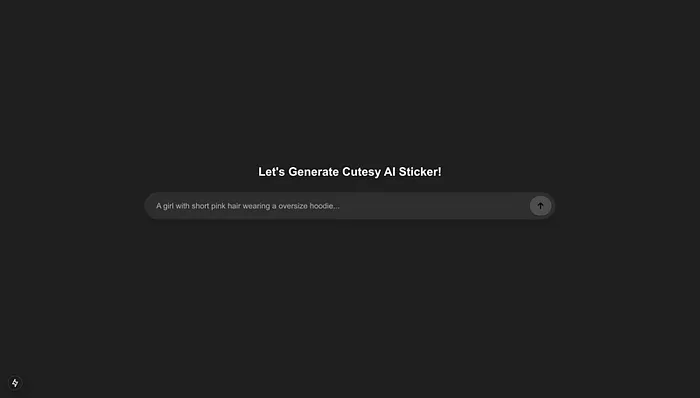
npm run devThis starts the development server. Open your browser and navigate to
http://localhost:3000You should see your AI Sticker Maker platform. 🌟
Testing It Out 🧪
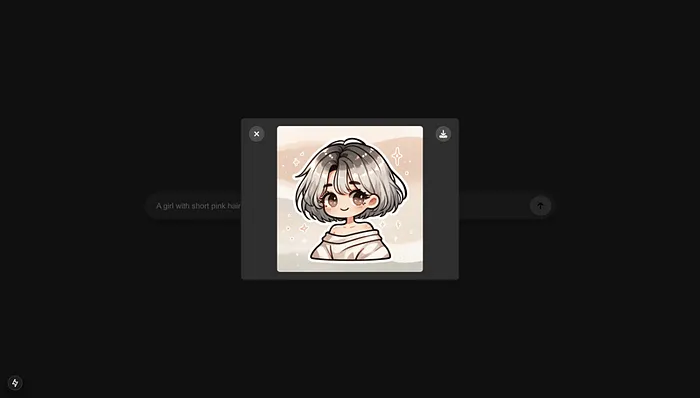
- Type a prompt, e.g., “A girl with short white+grey hair wearing an oversize shirt”.
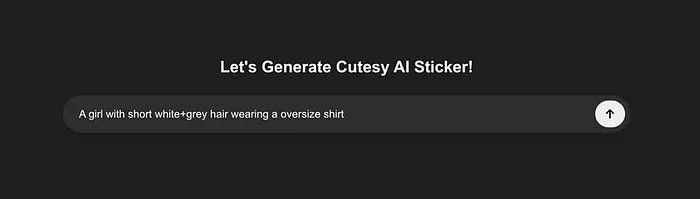
- Click the generate button and watch the magic happen.
- Notifications show the progress.
- Voila! Your AI-generated sticker appears. Enjoy!
Troubleshooting 🛠️
- Failed to fetch completion data: Check your API key for correctness.
- Images not loading: Verify your next.config.ts settings.
- App crashes: Look at the console errors, and Google is your friend!
Wrapping Up 🎁
Congrats! You’ve built a fun and functional AI Sticker Maker. You've explored AI and Next.js and created something that can brighten anyone’s day.
What's Next? 🚧
- Styling: Customize the look — make it as flashy or simple as you want.
- Features: Add user profiles, sticker galleries, even sticker packs.
- Monetization: Hook up Stripe and start charging for premium stickers. Time to earn!
Final Thoughts 💭
Building this app was like making a delicious tech sandwich: AI models as filling, Next.js as bread, and humor as the secret sauce. The world is your oyster (or sticker).
Keep experimenting and enjoy the ride!
Happy coding! 🎉
Full implementation available on Github AI Sticker Maker.
It’s Absolutely FREE to get started! Try It Now click
Also check out this tutorial, it’s very interesting! Building a Chrome Extension from Scratch with AI/ML API, Deepgram Aura, and IndexedDB Integration
Should you have any questions or need further assistance, don’t hesitate to reach out via email at [email protected].
.webp)
.webp)
.webp)


.webp)